Your progress is saved in this browser. There’s no timer.
Before you start
- An unlocked phone
- A screen with no private details
- Access to Photos or Gallery
A clear way through this guide.
We’ll show you one step at a time. When you’re ready, press Done — next step. You can go back or take a break whenever you like.
5 steps · Your own pace
Take and find a phone screenshot
Step 1 of 5: Prepare a safe practice screen
Open Clock or another ordinary screen. Close private notifications. A screenshot does not automatically hide names, balances or sign-in codes; inspect the result before sharing.
✓ Step complete. You can practise it again.
Step 2 of 5: Choose one capture method
iPhone with Face ID: briefly press Side and Volume Up together. iPhone with Home button: briefly press Home and Side together, or the top button on older models. Many Android phones use Power and Volume Down together; model instructions may differ.
✓ Step complete. You can practise it again.
Step 3 of 5: Release the buttons promptly
Use a brief simultaneous press rather than holding the buttons. Watch for a preview or capture indication. If a power or emergency menu appears, stop and check the exact model’s screenshot instructions before retrying.
✓ Step complete. You can practise it again.
Step 4 of 5: Save and locate the image
On iPhone, follow any Done/save prompt if editing; screenshots normally appear in Photos. On Android, look in Gallery or Google Photos under Screenshots or device folders. Menu names and the preview behaviour differ between versions.
✓ Step complete. You can practise it again.
Step 5 of 5: Inspect before sharing
Open the saved screenshot and enlarge it enough to check all visible details. Crop unnecessary areas if suitable, keeping the original private. Some secure apps block screenshots. A screenshot does not record a full video; that requires screen recording.
✓ Step complete. You can practise it again.
Take your time. Next marks this step done.
You’ve finished this guide.
Every step is complete. You can come back and practise again whenever you like.
Your small practice task.
Capture Clock, find the saved image and check it contains no private information.
Completing the guide records your progress here; it does not check your device settings.
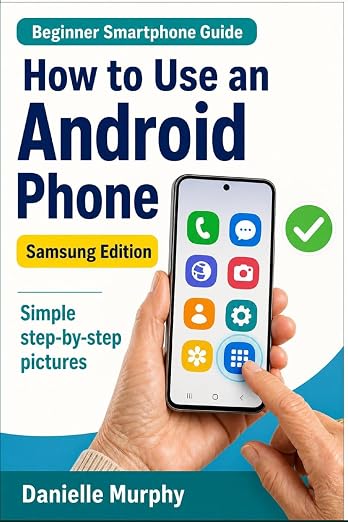
Prefer a guide beside your phone?
Explore Danielle Murphy’s picture-led paperback: 100 lessons across 10 sections, with large screenshots and highlighted controls.
Explore the Samsung bookA common question.
The buttons are difficult. Is there another way?
Many devices offer an accessibility or on-screen screenshot control. Check your model’s official help instead of forcing an awkward button combination.
Official help, if you need it.
These links provide the product’s own instructions or relevant public guidance. Settings can differ by model and software version.