Your progress is saved in this browser. There’s no timer.
Before you start
- Have your phone unlocked and know its passcode.
- Choose a familiar message or webpage for comparison.
A clear way through this guide.
We’ll show you one step at a time. When you’re ready, press Done — next step. You can go back or take a break whenever you like.
5 steps · Your own pace
Make your phone more comfortable to use
Step 1 of 5: Open the accessibility controls
On iPhone, open Settings, then Accessibility. Android alternative: search Settings for Accessibility, Font size or Display size. The names and layout depend on the manufacturer.
✓ Step complete. You can practise it again.
Step 2 of 5: Make text easier to read
On iPhone, choose Display & Text Size, then Larger Text. On Android, find Font size. Move the slider a small amount and read your familiar message again.
✓ Step complete. You can practise it again.
Step 3 of 5: Adjust the rest of the display
If buttons remain too small, try Display Zoom on iPhone or Display size on supported Android phones. Explore bold text or contrast controls separately; some apps do not follow every setting.
✓ Step complete. You can practise it again.
Step 4 of 5: Check sound and interaction options
Look through relevant hearing and touch settings. Read each option’s explanation before enabling it. Features such as screen readers change gestures, so learn their controls and exit method first.
✓ Step complete. You can practise it again.
Step 5 of 5: Practise and record what helped
Read a message, make a call and open an app. Keep the helpful changes, reverse uncomfortable ones and write down their setting names for a helper.
✓ Step complete. You can practise it again.
Take your time. Next marks this step done.
You’ve finished this guide.
Every step is complete. You can come back and practise again whenever you like.
Your small practice task.
Enlarge text slightly and compare it in two apps you use daily.
Completing the guide records your progress here; it does not check your device settings.
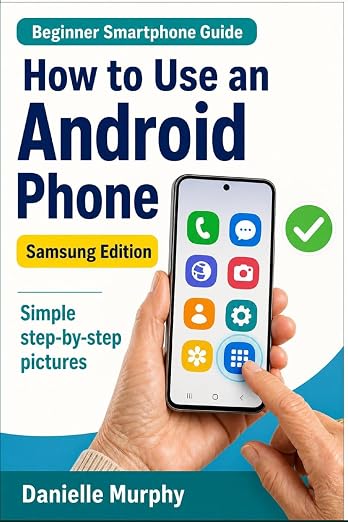
Prefer a guide beside your phone?
Explore Danielle Murphy’s picture-led paperback: 100 lessons across 10 sections, with large screenshots and highlighted controls.
Explore the Samsung bookA common question.
Why is one app still showing small text?
Some apps use their own text controls or do not support every system setting. Check the app’s display options or its official help instructions.
Official help, if you need it.
These links provide the product’s own instructions or relevant public guidance. Settings can differ by model and software version.