Your progress is saved in this browser. There’s no timer.
Before you start
- A charged phone
- Your own unlock code, if one is set
- A quiet place to practise
A clear way through this guide.
We’ll show you one step at a time. When you’re ready, press Done — next step. You can go back or take a break whenever you like.
5 steps · Your own pace
Start using your phone
Step 1 of 5: Wake or turn on the screen
Briefly press the side or power button to wake the screen. If the phone is switched off, hold its power button until the startup logo appears. Button positions vary; check the model manual if nothing happens.
✓ Step complete. You can practise it again.
Step 2 of 5: Unlock your own phone
Follow the screen prompt and enter your own PIN or passcode. Fingerprint or face recognition may also work. If you cannot remember the code, stop and use the manufacturer’s recovery help; repeated guesses can lock you out.
✓ Step complete. You can practise it again.
Step 3 of 5: Open one familiar app
Find Clock or Settings and tap its picture once. Give it a moment to open. Swipe a finger gently up the screen to move down a list; touching and holding can bring up a different menu.
✓ Step complete. You can practise it again.
Step 4 of 5: Return to the starting screen
iPhone with Home button: press Home. iPhone without it: swipe up from the bottom edge. Android: tap Home if there are navigation buttons, or swipe up from the bottom if gestures are enabled.
✓ Step complete. You can practise it again.
Step 5 of 5: Finish the practice session
Press the side or power button briefly to lock the screen. Locking is different from switching off. When practising, pause before deleting items, buying anything or granting access you do not understand.
✓ Step complete. You can practise it again.
Take your time. Next marks this step done.
You’ve finished this guide.
Every step is complete. You can come back and practise again whenever you like.
Your small practice task.
Open Clock, return Home, then lock and unlock the screen once.
Completing the guide records your progress here; it does not check your device settings.
Prefer a guide beside your phone?
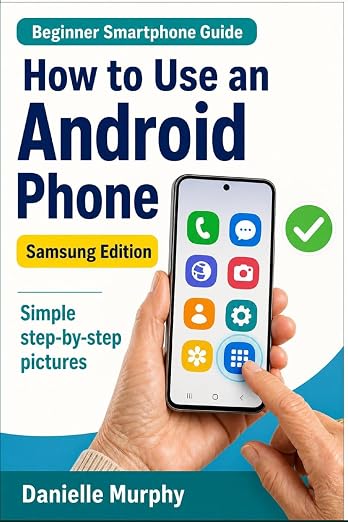
Explore Danielle Murphy’s picture-led paperback: 100 lessons across 10 sections, with large screenshots and highlighted controls.
Explore the Samsung bookA common question.
Does this guide set up a new phone?
No. Initial setup screens vary by model and account. Complete the manufacturer’s setup instructions first, then return for practice.
Official help, if you need it.
These links provide the product’s own instructions or relevant public guidance. Settings can differ by model and software version.