Your progress is saved in this browser. There’s no timer.
Before you start
- An unlocked phone
- Access to Settings
- A familiar app for checking the result
A clear way through this guide.
We’ll show you one step at a time. When you’re ready, press Done — next step. You can go back or take a break whenever you like.
5 steps · Your own pace
Make phone text and controls larger
Step 1 of 5: Find the text setting
iPhone: open Settings, then Accessibility, Display & Text Size and Larger Text. Android: open Settings and search for Font size. Menu names vary across Android manufacturers; using Settings search can be easier than browsing menus.
✓ Step complete. You can practise it again.
Step 2 of 5: Choose a readable size
Move the text-size slider a little towards the larger end. Read the preview before moving it further. On iPhone, Larger Accessibility Sizes offers extra sizes. Aim for comfortable reading rather than the largest possible setting.
✓ Step complete. You can practise it again.
Step 3 of 5: Check everyday screens
Return Home and open Messages or another familiar app. Read a short item and check whether buttons still fit comfortably. If parts are cut off or need too much scrolling, return to the setting and reduce it slightly.
✓ Step complete. You can practise it again.
Step 4 of 5: Try larger controls separately
Android: search Settings for Display size. iPhone: look for Display Zoom under Display & Brightness; availability differs by model. Choose a larger option if needed. This affects more of the screen than changing text size alone.
✓ Step complete. You can practise it again.
Step 5 of 5: Keep a simple reminder
Write down which setting helped and where you found it. Larger Home Screen icon styles are separate on some devices. Check their preview and labels before changing them; making icons large can affect how app names are displayed.
✓ Step complete. You can practise it again.
Take your time. Next marks this step done.
You’ve finished this guide.
Every step is complete. You can come back and practise again whenever you like.
Your small practice task.
Adjust text by one notch, read a message and keep the size you prefer.
Completing the guide records your progress here; it does not check your device settings.
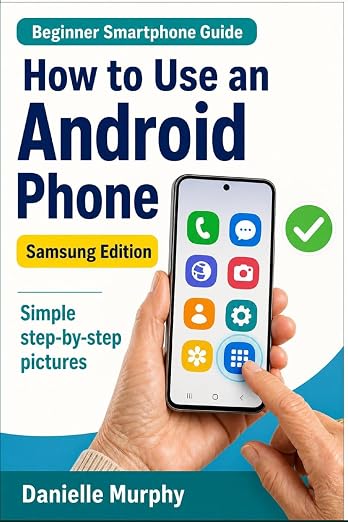
Prefer a guide beside your phone?
Explore Danielle Murphy’s picture-led paperback: 100 lessons across 10 sections, with large screenshots and highlighted controls.
Explore the Samsung bookA common question.
Why is one app still hard to read?
Some apps use their own text controls. Check that app’s settings or accessibility support rather than assuming the phone setting failed.
Official help, if you need it.
These links provide the product’s own instructions or relevant public guidance. Settings can differ by model and software version.