Your progress is saved in this browser. There’s no timer.
Before you start
- An unlocked phone
- An app you can open for practice
A clear way through this guide.
We’ll show you one step at a time. When you’re ready, press Done — next step. You can go back or take a break whenever you like.
5 steps · Your own pace
Find Home, Back and your open apps
Step 1 of 5: Identify your navigation style
Look at the bottom edge. Android may show Home, Back and Recents buttons, or use swipes instead. Some iPhones have a round physical Home button. Other iPhones use a swipe from the bottom edge.
✓ Step complete. You can practise it again.
Step 2 of 5: Return Home
Open Clock. iPhone with Home button: press it once. iPhone without Home button: swipe up from the bottom. Android: tap its Home button or swipe up from the bottom in gesture mode. Your main screen should appear.
✓ Step complete. You can practise it again.
Step 3 of 5: Go back one step
Android: tap Back, or swipe inward from a screen edge when gesture navigation is enabled. iPhone: use the app’s back arrow, usually near the top left; many apps also allow a swipe from the left edge.
✓ Step complete. You can practise it again.
Step 4 of 5: See recently used apps
iPhone with Home button: press it twice. Gesture-based iPhone or Android: swipe up from the bottom and pause. Android with buttons: tap Recents. You should see cards representing apps, not a list of installed software.
✓ Step complete. You can practise it again.
Step 5 of 5: Switch and lock
Tap an app card to return to it, then practise Home again. Briefly press the side or power button to lock the screen. If a gesture is difficult, use the accessibility options described in your device manual.
✓ Step complete. You can practise it again.
Take your time. Next marks this step done.
You’ve finished this guide.
Every step is complete. You can come back and practise again whenever you like.
Your small practice task.
Open one app, return Home, then find it in the app switcher.
Completing the guide records your progress here; it does not check your device settings.
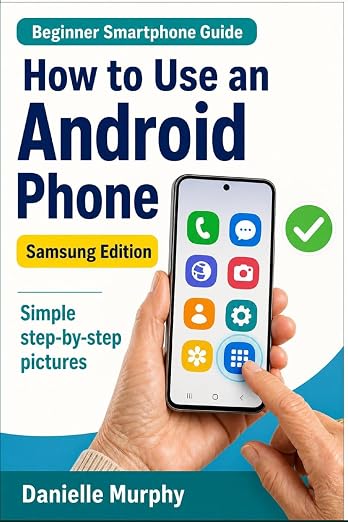
Prefer a guide beside your phone?
Explore Danielle Murphy’s picture-led paperback: 100 lessons across 10 sections, with large screenshots and highlighted controls.
Explore the Samsung bookA common question.
Does going Home delete my work?
Usually it leaves the app available. Save important work inside the app; unfinished forms and some games may not keep every change.
Official help, if you need it.
These links provide the product’s own instructions or relevant public guidance. Settings can differ by model and software version.