
Your progress is saved in this browser. There’s no timer.
Before you start
- An unlocked phone
- A notes app with editable text
- A short practice sentence
A clear way through this guide.
We’ll show you one step at a time. When you’re ready, press Done — next step. You can go back or take a break whenever you like.
5 steps · Your own pace
Copy and paste text on your phone
Step 1 of 5: Choose a practice sentence
Open a note and type a few ordinary words. Some webpages, images and app screens do not allow text selection. Starting in editable text makes it easier to recognise the selection handles and avoid an accidental message.
✓ Step complete. You can practise it again.
Step 2 of 5: Select the text
iPhone editable text: double-tap a word. Android: touch and hold a word in a supported text field. Drag the selection handles to include the words you want. Make sure only your intended text is highlighted.
✓ Step complete. You can practise it again.
Step 3 of 5: Choose Copy
Tap Copy in the selection menu. If it is hidden, look for the menu’s arrow or more-options control. Avoid Cut unless you want to remove the selected words. Copying does not visibly move the original text.
✓ Step complete. You can practise it again.
Step 4 of 5: Choose the destination
Tap a blank part of the note or another editable field where you want the copy. Move the cursor if necessary. Make sure you are not placing it in a message that could be sent to someone by mistake.
✓ Step complete. You can practise it again.
Step 5 of 5: Paste and check
Touch and hold at the insertion point and choose Paste when offered. Read the result before saving or sending. A later copy may replace the temporary clipboard contents, and some apps or sensitive fields limit copying.
✓ Step complete. You can practise it again.
Take your time. Next marks this step done.
You’ve finished this guide.
Every step is complete. You can come back and practise again whenever you like.
Your small practice task.
Copy three words from a practice note and paste them on a new line.
Completing the guide records your progress here; it does not check your device settings.
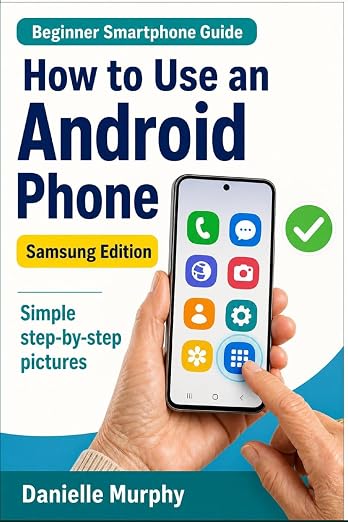
Prefer a guide beside your phone?
Explore Danielle Murphy’s picture-led paperback: 100 lessons across 10 sections, with large screenshots and highlighted controls.
Explore the Samsung bookA common question.
Why do I not see Paste?
The field may not be editable or the clipboard may be empty. Try copying ordinary text again and pasting into a blank note.
Official help, if you need it.
These links provide the product’s own instructions or relevant public guidance. Settings can differ by model and software version.