Your progress is saved in this browser. There’s no timer.
Before you start
- Home Wi-Fi
- Sufficient battery or a compatible charger
- Your own cloud account with enough storage
A clear way through this guide.
We’ll show you one step at a time. When you’re ready, press Done — next step. You can go back or take a break whenever you like.
5 steps · Your own pace
Back up your phone and check your photos
Step 1 of 5: Identify the correct account
Check the account in iPhone Settings or Android’s backup area. Confirm you can recover it. Note only the account name, never passwords or security codes.
✓ Step complete. You can practise it again.
Step 2 of 5: Start the device backup
iPhone: Settings, your name, iCloud, iCloud Backup, Back Up Now. Android: Settings, Google/Google services, All services, Backup, then Back up now if offered. Manufacturers vary; Settings search for Backup can help locate it.
✓ Step complete. You can practise it again.
Step 3 of 5: Wait and verify completion
Stay connected while the backup runs. On iPhone, read the latest completed backup date/time. Android shows backup details and status. Resolve storage or connection errors rather than assuming that enabling backup means an upload has finished.
✓ Step complete. You can practise it again.
Step 4 of 5: Check photos separately
iCloud Photos syncs separately from iCloud Backup when enabled. For Google Photos, check the backup account, chosen folders and completion status. Open a recent sample from the genuine online library or another device; do not delete originals during this check.
✓ Step complete. You can practise it again.
Step 5 of 5: Check contacts and important app data
Review which account holds your contacts and whether it is syncing. SIM-only or local contacts may need separate copying. Check important apps’ own backup/export options. Keep an independent copy of irreplaceable material where practical.
✓ Step complete. You can practise it again.
Take your time. Next marks this step done.
You’ve finished this guide.
Every step is complete. You can come back and practise again whenever you like.
Your small practice task.
Check the most recent backup result and open one recent photo in your online library.
Completing the guide records your progress here; it does not check your device settings.
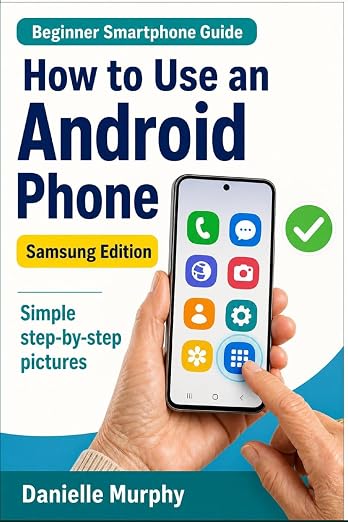
Prefer a guide beside your phone?
Explore Danielle Murphy’s picture-led paperback: 100 lessons across 10 sections, with large screenshots and highlighted controls.
Explore the Samsung bookA common question.
Is syncing the same as an independent backup?
No. Syncing can copy edits and deletions between devices. An independent copy can provide another recovery route for important material.
Official help, if you need it.
These links provide the product’s own instructions or relevant public guidance. Settings can differ by model and software version.