Your progress is saved in this browser. There’s no timer.
Before you start
- A powered-on charged phone
- The built-in Clock app
- Time for a short test
A clear way through this guide.
We’ll show you one step at a time. When you’re ready, press Done — next step. You can go back or take a break whenever you like.
5 steps · Your own pace
Set and test a phone alarm
Step 1 of 5: Open Alarm in Clock
Find Clock and its Alarm area. Existing alarms may be listed with switches beside them. Choose the add or plus control to create a new alarm, rather than editing an important existing one by mistake.
✓ Step complete. You can practise it again.
Step 2 of 5: Set the right time
Choose a time a few minutes ahead for practice. Check AM or PM if the phone uses a twelve-hour clock. Confirm the displayed hour and minute before proceeding; a wrong half of the day can be easy to miss.
✓ Step complete. You can practise it again.
Step 3 of 5: Choose repeat and label
Select repeat days only if you want a recurring alarm. Give the practice alarm a clear label such as Test. Review the selected days rather than assuming that an alarm automatically repeats every morning.
✓ Step complete. You can practise it again.
Step 4 of 5: Choose sound and save
Pick an audible sound and check the relevant alarm volume. Avoid None or Silent for a sound test. Save or confirm the alarm if the app requires it, and verify its switch is on in the alarm list.
✓ Step complete. You can practise it again.
Step 5 of 5: Test, then remove the practice alarm
Wait for it to ring, then use Stop or Dismiss. Snooze delays an alarm instead of finishing it. Turn off or delete the test afterwards. Keep the phone powered on unless its manufacturer explicitly supports alarms while switched off.
✓ Step complete. You can practise it again.
Take your time. Next marks this step done.
You’ve finished this guide.
Every step is complete. You can come back and practise again whenever you like.
Your small practice task.
Create a test alarm a few minutes ahead, hear it, stop it and remove it.
Completing the guide records your progress here; it does not check your device settings.
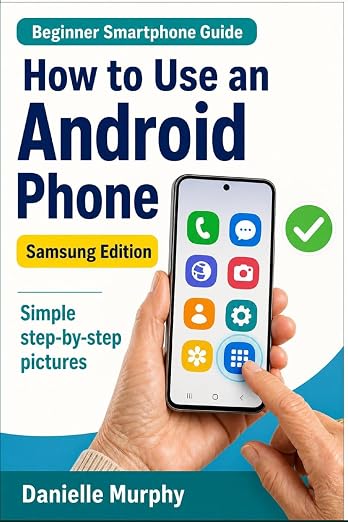
Prefer a guide beside your phone?
Explore Danielle Murphy’s picture-led paperback: 100 lessons across 10 sections, with large screenshots and highlighted controls.
Explore the Samsung bookA common question.
Does silent mode affect my alarm?
iPhone Clock alarms ignore Silent and Do Not Disturb with an audible sound selected. Android settings vary; test the sound and volume.
Official help, if you need it.
These links provide the product’s own instructions or relevant public guidance. Settings can differ by model and software version.