Your progress is saved in this browser. There’s no timer.
Before you start
- Unlock your configured phone and choose something harmless to photograph.
- Have a messaging or email app you already use, with a trusted recipient and internet access.
A clear way through this guide.
We’ll show you one step at a time. When you’re ready, press Done — next step. You can go back or take a break whenever you like.
6 steps · Your own pace
Take and share a photo on a Samsung phone
Step 1 of 6: Open Camera
Find Camera on Home or in the Apps screen and tap it. Select Photo mode if the app opens in another mode. Use the camera-switch symbol if you are looking at yourself instead of the object.
✓ Step complete. You can practise it again.
Step 2 of 6: Frame a simple picture
Hold the phone steadily with both hands. Move until the object is comfortably inside the frame. Check the background too, so the picture does not include letters, addresses or other information you would rather keep private.
✓ Step complete. You can practise it again.
Step 3 of 6: Take one photo
Tap the onscreen shutter button once, usually a large circle. Pause afterwards to avoid moving during the shot. You do not need to explore extra camera modes or change settings.
✓ Step complete. You can practise it again.
Step 4 of 6: Find it in Gallery
Return Home and open Gallery. Find your new image in Pictures or the Camera album, then open it to check the result. You can take another photo if the first attempt is blurred.
✓ Step complete. You can practise it again.
Step 5 of 6: Choose how to share
In Gallery, select the photo, using a touch-and-hold if needed, then tap Share. Choose your familiar messaging or email app. Avoid selecting a public posting destination unless you intend other people to see it.
✓ Step complete. You can practise it again.
Step 6 of 6: Check the recipient and send
Follow your chosen app's prompts to select the recipient. Check the person's name and attached photo before tapping Send. Ask them to confirm receipt. Sending over some message services can incur charges depending on your plan.
✓ Step complete. You can practise it again.
Take your time. Next marks this step done.
You’ve finished this guide.
Every step is complete. You can come back and practise again whenever you like.
Your small practice task.
Photograph a harmless object and send that single image to one trusted person.
Completing the guide records your progress here; it does not check your device settings.
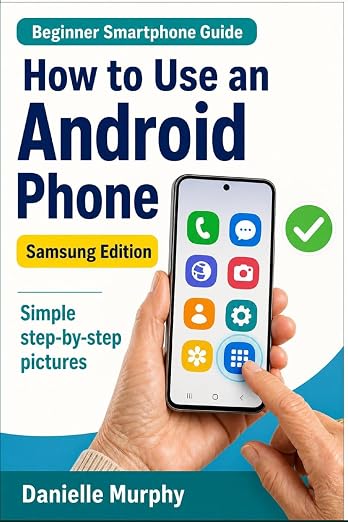
Prefer a guide beside your phone?
Explore Danielle Murphy’s picture-led paperback: 100 lessons across 10 sections, with large screenshots and highlighted controls.
Explore the Samsung bookA common question.
Must I use Quick Share?
No. Gallery's Share menu can offer several installed apps. Choose the messaging or email app you already know. The next screens depend on that app, so follow its instructions if they differ.
Official help, if you need it.
These links provide the product’s own instructions or relevant public guidance. Settings can differ by model and software version.