
Your progress is saved in this browser. There’s no timer.
Before you start
- An unlocked phone
- Access to the phone’s quick controls or Settings
A clear way through this guide.
We’ll show you one step at a time. When you’re ready, press Done — next step. You can go back or take a break whenever you like.
5 steps · Your own pace
Understand common phone status symbols
Step 1 of 5: Check the battery symbol
Look for the battery outline and any displayed percentage. A charging indication means the phone has detected charging; colour conventions differ by device and mode. Read any charging warning rather than judging by colour alone.
✓ Step complete. You can practise it again.
Step 2 of 5: Compare mobile and Wi-Fi indicators
Signal bars relate to the mobile network, while curved Wi-Fi lines indicate a wireless-network connection. Neither alone guarantees a website will load. Test a fresh page if you need to confirm working internet access.
✓ Step complete. You can practise it again.
Step 3 of 5: Recognise Airplane mode
An aeroplane symbol usually indicates Airplane mode. This changes wireless connections, although Wi-Fi or Bluetooth can sometimes be enabled separately. Open the quick controls or Settings to read the actual switch state rather than guessing.
✓ Step complete. You can practise it again.
Step 4 of 5: Look for quiet and orientation controls
A moon or quiet-mode symbol can indicate Focus or Do Not Disturb on some phones. A lock with a circular arrow may mean screen-rotation lock, not your account password. Open the labelled control to confirm its meaning on your device.
✓ Step complete. You can practise it again.
Step 5 of 5: Check unfamiliar or privacy indicators
Small microphone/camera indicators can show access by an app on supported phones. Check the control panel or privacy settings for details. Write down the symbol and model, then consult official help before changing a setting you do not recognise.
✓ Step complete. You can practise it again.
Take your time. Next marks this step done.
You’ve finished this guide.
Every step is complete. You can come back and practise again whenever you like.
Your small practice task.
Identify battery and network symbols, then confirm one label in Settings.
Completing the guide records your progress here; it does not check your device settings.
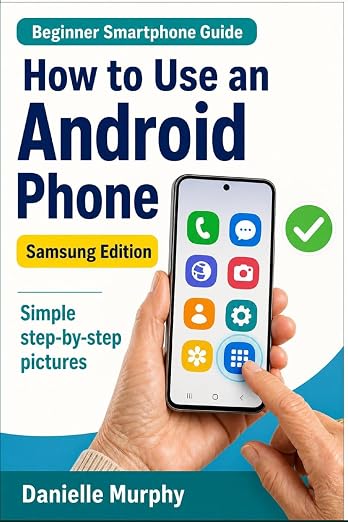
Prefer a guide beside your phone?
Explore Danielle Murphy’s picture-led paperback: 100 lessons across 10 sections, with large screenshots and highlighted controls.
Explore the Samsung bookA common question.
My phone has a different symbol. Is something wrong?
Not necessarily. Manufacturers and software versions use different designs. Check your exact model’s status-icon reference.
Official help, if you need it.
These links provide the product’s own instructions or relevant public guidance. Settings can differ by model and software version.