Your progress is saved in this browser. There’s no timer.
Before you start
- An unlocked phone
- A familiar app
- A backup of important app data before removal
A clear way through this guide.
We’ll show you one step at a time. When you’re ready, press Done — next step. You can go back or take a break whenever you like.
5 steps · Your own pace
Leave, close or remove a phone app
Step 1 of 5: Leave an app normally
Use your phone’s Home button or swipe to return Home. This leaves the app available for later. You do not need to swipe away every app after each use; phones manage background activity themselves.
✓ Step complete. You can practise it again.
Step 2 of 5: Open recent apps if it is stuck
iPhone with Home button: double-press Home. iPhone without it: swipe up from the bottom and pause. Android: use Recents or the corresponding swipe-and-pause gesture. Look for the card showing the unresponsive app.
✓ Step complete. You can practise it again.
Step 3 of 5: Close only the affected app
Swipe the app’s card away, usually upwards, then reopen it from its icon. Unsaved work may be lost. If it repeatedly freezes, update the app and check the publisher’s help before deleting or clearing its stored data.
✓ Step complete. You can practise it again.
Step 4 of 5: Check before uninstalling
Find whether files, notes or game progress are stored only in the app. Export or back up anything important. Check ongoing subscriptions separately; removing an app does not automatically stop a charge or delete its online account.
✓ Step complete. You can practise it again.
Step 5 of 5: Remove it only if intended
iPhone: touch and hold the icon, choose Remove App, then Delete App if you mean to uninstall. Android: use App info and Uninstall, or the store’s uninstall control. Remove from Home may only hide the shortcut.
✓ Step complete. You can practise it again.
Take your time. Next marks this step done.
You’ve finished this guide.
Every step is complete. You can come back and practise again whenever you like.
Your small practice task.
Practise leaving and reopening Clock; do not uninstall it.
Completing the guide records your progress here; it does not check your device settings.
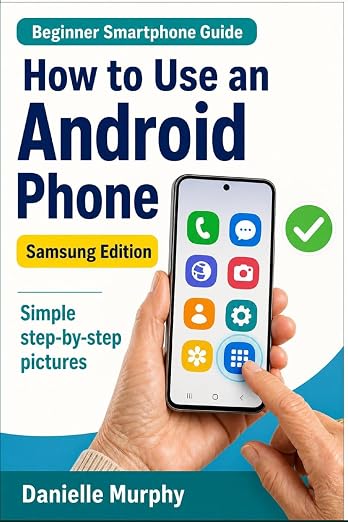
Prefer a guide beside your phone?
Explore Danielle Murphy’s picture-led paperback: 100 lessons across 10 sections, with large screenshots and highlighted controls.
Explore the Samsung bookA common question.
Can every built-in app be deleted?
No. Some can only be hidden or disabled, and available choices vary by device. Avoid disabling a system app you do not recognise.
Official help, if you need it.
These links provide the product’s own instructions or relevant public guidance. Settings can differ by model and software version.