Your progress is saved in this browser. There’s no timer.
Before you start
- Internet access, preferably home Wi-Fi
- A reasonable battery level
- Access to your app store
- Enough free storage
A clear way through this guide.
We’ll show you one step at a time. When you’re ready, press Done — next step. You can go back or take a break whenever you like.
5 steps · Your own pace
Update your phone’s apps
Step 1 of 5: Open the store update area
Android: open Google Play, tap your profile picture and choose Manage apps & device. iPhone: open App Store, tap your account picture and look for App Updates or available updates. The layout varies by version.
✓ Step complete. You can practise it again.
Step 2 of 5: Read what is available
Find the app you want to update. If its release notes are available, read them for major changes. Update describes an existing app; Install or Get may be for an app not currently on your device.
✓ Step complete. You can practise it again.
Step 3 of 5: Start the update
Tap Update beside the app, or Update all if you are ready for every listed update. Leave the connection available and allow the store to finish. A work-managed phone may require permission from its administrator.
✓ Step complete. You can practise it again.
Step 4 of 5: Open the app afterwards
Launch the updated app and try a familiar action. If controls have moved, check the app’s own help. An update should not require you to send your password to a person; sign in only within the genuine app if requested.
✓ Step complete. You can practise it again.
Step 5 of 5: Choose automatic updates if useful
Find automatic app updates in the store or device settings. On iPhone, App Store settings are inside Settings. On Android, check Google Play’s Settings. Consider Wi-Fi-only updates if your mobile data allowance is limited.
✓ Step complete. You can practise it again.
Take your time. Next marks this step done.
You’ve finished this guide.
Every step is complete. You can come back and practise again whenever you like.
Your small practice task.
Check whether one familiar app has an update and open it after updating.
Completing the guide records your progress here; it does not check your device settings.
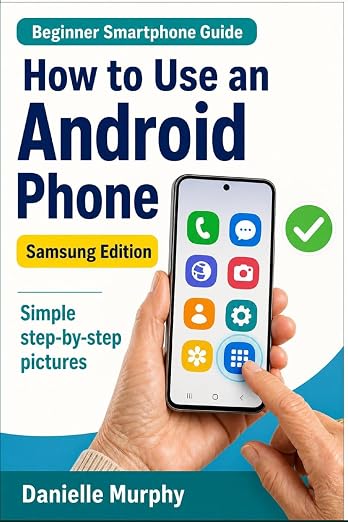
Prefer a guide beside your phone?
Explore Danielle Murphy’s picture-led paperback: 100 lessons across 10 sections, with large screenshots and highlighted controls.
Explore the Samsung bookA common question.
Why is no update offered for my app?
You may already have it, or an update may not support your device yet. Check compatibility and the publisher’s support page.
Official help, if you need it.
These links provide the product’s own instructions or relevant public guidance. Settings can differ by model and software version.