Your progress is saved in this browser. There’s no timer.
Before you start
- A phone with Wi-Fi
- The correct network name
- The network’s Wi-Fi password
- Permission to use that network
A clear way through this guide.
We’ll show you one step at a time. When you’re ready, press Done — next step. You can go back or take a break whenever you like.
5 steps · Your own pace
Connect your phone to home Wi-Fi
Step 1 of 5: Open the Wi-Fi controls
iPhone: open Settings and Wi-Fi. Android: open Settings and look for Internet, Network & internet or Connections, then Wi-Fi. Switch Wi-Fi on. Menu wording depends on the Android phone maker.
✓ Step complete. You can practise it again.
Step 2 of 5: Choose the right network
Compare the listed name with your router label or the details given by the network owner. Similar names can be misleading. Tap the exact network you intend to use; a lock symbol means a password is required.
✓ Step complete. You can practise it again.
Step 3 of 5: Enter the network password
Type it carefully, including capital letters and symbols, then choose Join or Connect. This is the Wi-Fi password, not necessarily the router administration password or your email password. Use Show password briefly if needed and private.
✓ Step complete. You can practise it again.
Step 4 of 5: Confirm the connection
Look for Connected or a check mark beside the network. Then open a new page in your browser. A Wi-Fi symbol alone does not prove that the network has internet access; an already-open page may be stored locally.
✓ Step complete. You can practise it again.
Step 5 of 5: Make one check if it fails
Recheck the name and password and move closer to the router. Test another device on the same network. If all devices fail, investigate the router or provider before changing lots of settings on the phone.
✓ Step complete. You can practise it again.
Take your time. Next marks this step done.
You’ve finished this guide.
Every step is complete. You can come back and practise again whenever you like.
Your small practice task.
Connect to your own network, then open a website you were not already viewing.
Completing the guide records your progress here; it does not check your device settings.
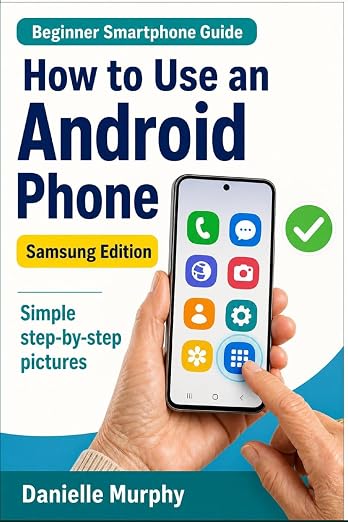
Prefer a guide beside your phone?
Explore Danielle Murphy’s picture-led paperback: 100 lessons across 10 sections, with large screenshots and highlighted controls.
Explore the Samsung bookA common question.
Will I need to enter the password every time?
The phone usually remembers a saved network. A changed password, forgotten network or some public networks may require another sign-in.
Official help, if you need it.
These links provide the product’s own instructions or relevant public guidance. Settings can differ by model and software version.