Your progress is saved in this browser. There’s no timer.
Before you start
- Connect to Wi-Fi and use a PIN, pattern, or password screen lock.
- Menu names vary by phone manufacturer and Android version.
A clear way through this guide.
We’ll show you one step at a time. When you’re ready, press Done — next step. You can go back or take a break whenever you like.
5 steps · Your own pace
How to back up an Android phone
Step 1 of 5: Open Google settings
Open your phone's Settings, then Google, then All services.
✓ Step complete. You can practise it again.
Step 2 of 5: Find Backup
Under Backup and restore, open Backup.
✓ Step complete. You can practise it again.
Step 3 of 5: Check your account
Confirm the Google Account being used. If prompted, enable Backup by Google One and follow setup.
✓ Step complete. You can practise it again.
Step 4 of 5: Start a backup
Tap Back up now. Keep the phone connected while it backs up.
✓ Step complete. You can practise it again.
Step 5 of 5: Review what was included
Check Backup details for included data and apps. Check Google Photos separately for photo and video backup.
✓ Step complete. You can practise it again.
Take your time. Next marks this step done.
You’ve finished this guide.
Every step is complete. You can come back and practise again whenever you like.
Your small practice task.
Try the task with something you are comfortable changing. Stop if a message asks you to erase data or spend money.
Completing the guide records your progress here; it does not check your device settings.
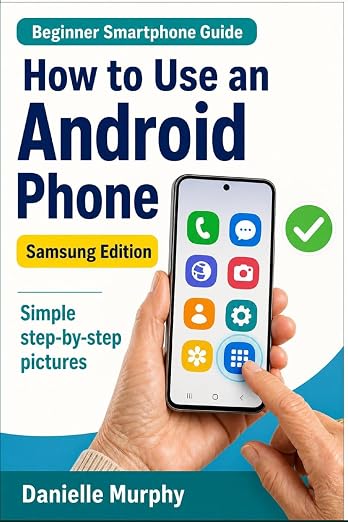
Prefer a guide beside your phone?
Explore Danielle Murphy’s picture-led paperback: 100 lessons across 10 sections, with large screenshots and highlighted controls.
Explore the Samsung bookA common question.
Does backup include every app's data?
No. Not all apps back up or restore all their settings and data.
Can I restore onto an older Android version?
Use the same or a newer Android version. A newer-version backup cannot be restored to an older version.
Official help, if you need it.
These links provide the product’s own instructions or relevant public guidance. Settings can differ by model and software version.